How to Export Trade History from MetaTrader 5 (HTML, Excel & CSV)
Step-by-step: export your MT5 trade history as an HTML or Excel report, pick the right date range, and import it into a trading journal without duplicates.
Whether you want to analyse your trading, move to a trading journal, or send a statement to a prop firm, you'll need to export your trade history from MetaTrader 5. MT5 hides this feature in a right-click menu, so here's exactly where to find it.
Quick answer
- Press Ctrl+T to open the Toolbox and select the History tab.
- Right-click inside the tab and set the period you want, or choose a custom range.
- Right-click again and choose Report.
- Save it as HTML or as an Excel (Open XML) file.
That's it. The rest of this guide covers the details that trip people up.
Step 1: Open the History tab
The Toolbox window sits at the bottom of the MT5 terminal. If it's hidden, press Ctrl+T or use View › Toolbox. Click the History tab.
By default MT5 may only show the last few days. If the list looks short, that's why.
Step 2: Choose positions and the date range
Right-click anywhere in the History list. You'll see options to switch the view between Positions, Deals and Orders, and to set the period: Today, Last 3 days, Last week, Last month, Last 3 months, Last 6 months, All history, or a Custom period.
- Positions shows each trade once, with entry and exit combined. This is the view you want to read.
- Deals shows each fill separately, so a single trade appears as an "in" deal and an "out" deal.
For a first import into a journal, choose All history. For weekly updates, the last month is plenty.
Step 3: Save the report
Right-click again and choose Report. Depending on your MT5 build you'll get a choice of formats:
- HTML — opens in a browser, includes a balance chart and summary statistics
- Open XML (MS Office Excel 2007) — an .xlsx file with the same tables
Either format works for importing into PipLog. HTML is the most widely supported by other tools as well.
What's inside an MT5 report
An MT5 report contains several sections:
| Section | Contents |
|---|---|
| Account info | Login, name, broker, currency, leverage |
| Positions | One row per closed position: time, symbol, type, volume, prices, SL, TP, commission, swap, profit |
| Orders | Every order placed, including cancelled pending orders |
| Deals | Every individual fill |
| Results | Net profit, profit factor, expected payoff, drawdown, win rates |
A journal importer should read the Positions section and ignore the rest. It should also keep commission and swap separate, so your net P&L matches the broker to the cent.
Step 4: Import into your journal
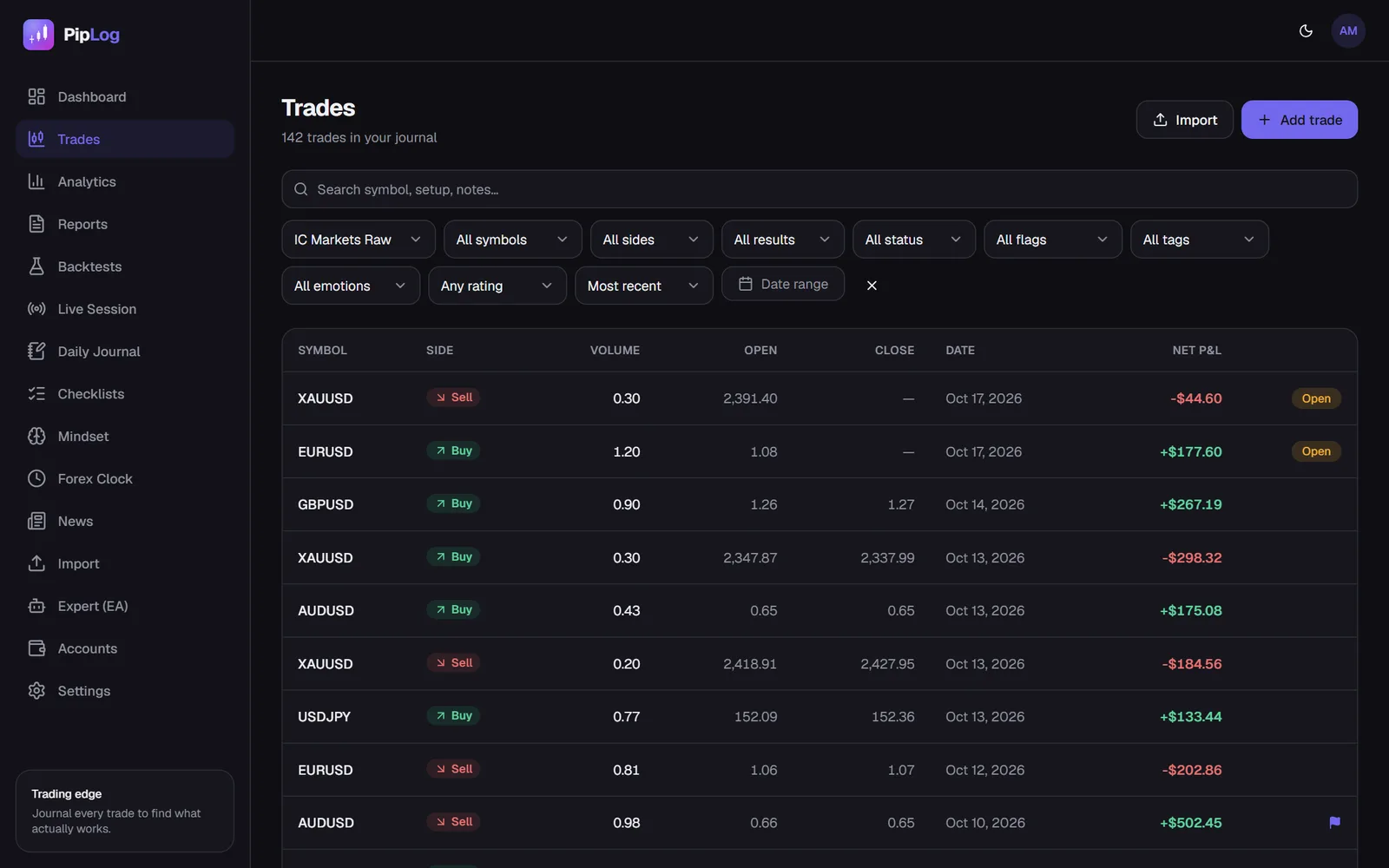
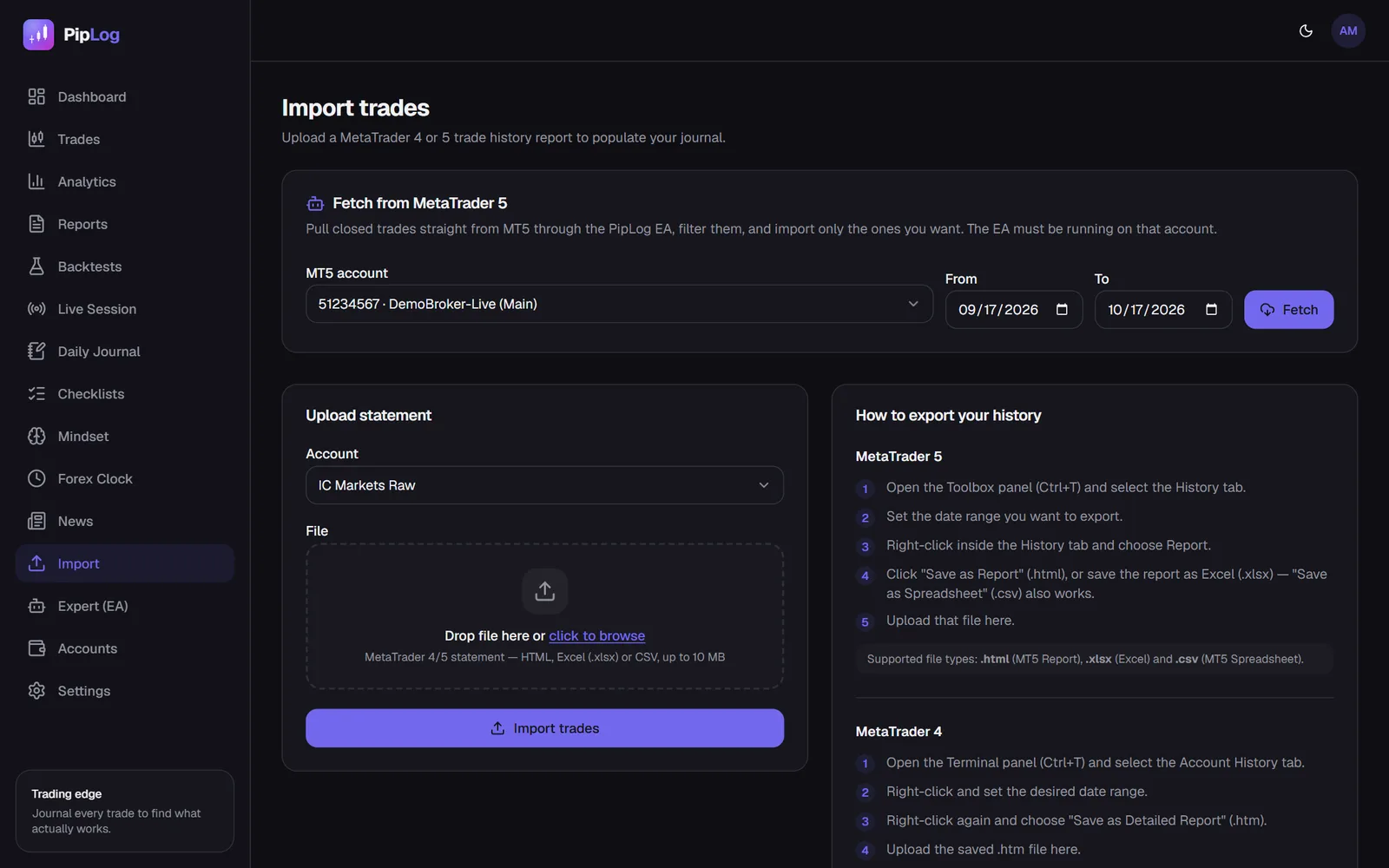
In PipLog, go to Import, pick the trading account and upload the file. The importer detects whether it's an MT5 HTML report, an MT5 Excel file, an MT5 CSV, an MT4 statement or a generic CSV.
Each trade is matched by its MT5 position ticket. If you import the same period twice, existing trades are skipped and counted as duplicates. That means you can safely export "Last month" every week and re-import it.
Troubleshooting
My report is empty or missing trades
Check the period filter in the History tab, and make sure you're logged in to the right account. MT5 only shows history for the account you are currently connected to.
The numbers don't match my broker's statement
Most mismatches come from commission. Some brokers charge it on the entry deal, some on the exit, and some on both. Make sure your journal uses the position's total commission and includes swap, and compare net profit (profit + commission + swap), not gross profit.
I have years of history and the export is slow
Export in yearly chunks. Because imports are de-duplicated by ticket, overlapping ranges are harmless.
Can I skip exporting completely?
Yes. With the PipLog EA running on your terminal, new trades sync automatically. You can also request older history from the PipLog import page: the EA uploads the closed positions for the range you pick, and you choose which ones to keep.
Exporting from MT4 instead?
MT4 works differently. It uses "Save as Detailed Report" in the Account History tab. See how to export trade history from MT4.
Journal your MT4 & MT5 trades automatically
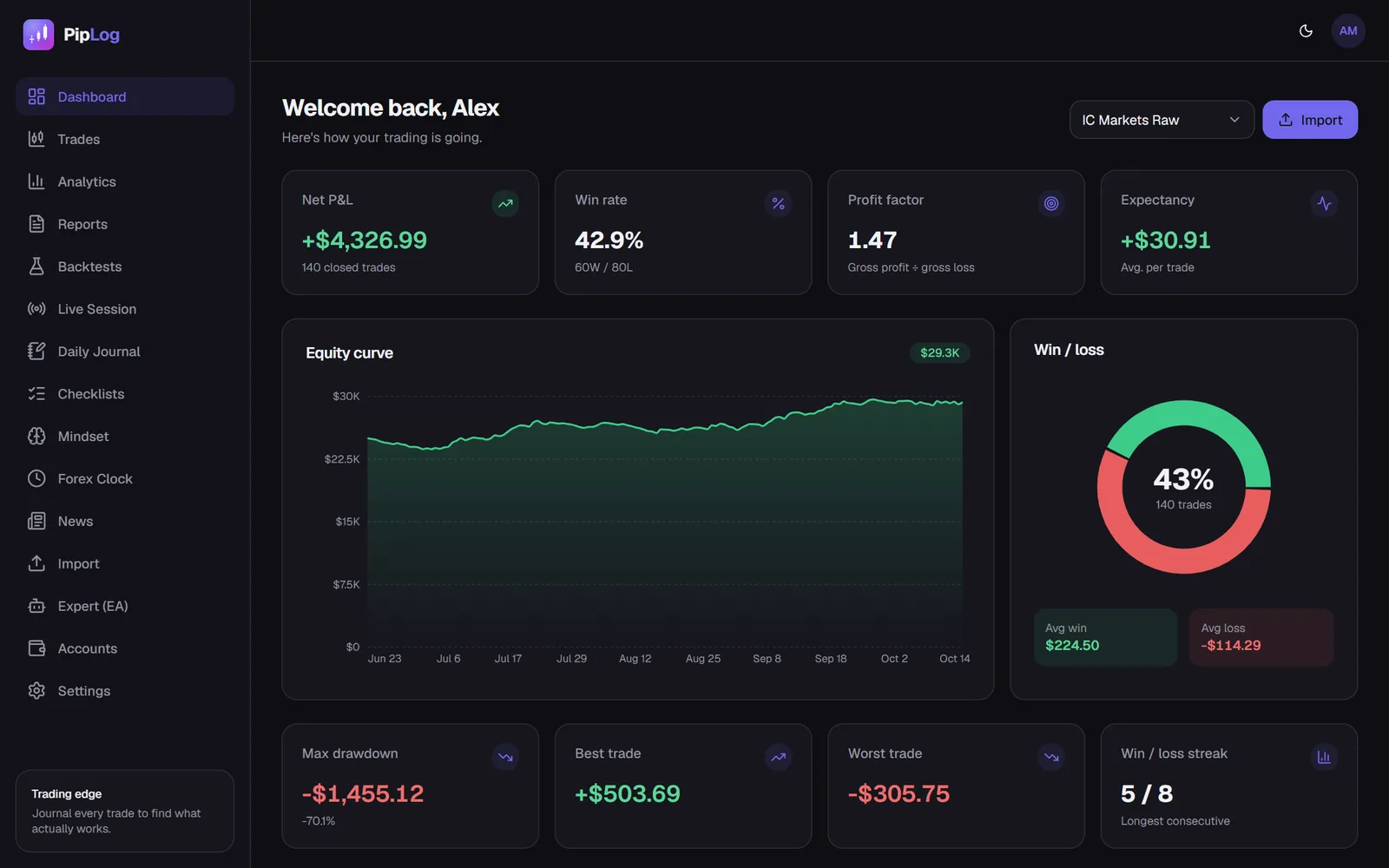
Import a statement or sync live with the PipLog EA. Win rate, profit factor, expectancy and drawdown are calculated for you.
Start your journal