How to Export Trade History from MT4 (Detailed Statement Guide)
Export your MetaTrader 4 account history as a Detailed Report in four clicks, fix missing trades, and import the statement into a trading journal.
MetaTrader 4 is still the platform of choice for many forex traders, and exporting your history from it is easy once you know where to click. This guide walks through exporting an MT4 Detailed Report and using it in a trading journal.
Quick answer
- Press Ctrl+T to open the Terminal window and select Account History.
- Right-click and choose All History (or a custom period).
- Right-click again and choose Save as Detailed Report.
- Save the .htm file and import it into your journal.
Step 1: Open Account History
The Terminal window lives at the bottom of MT4. If it isn't visible, press Ctrl+T or go to View › Terminal. Click the Account History tab.
Step 2: Load the full history
MT4 only loads part of your history by default, often just the current month. Right-click in the Account History tab and choose one of:
- All History
- Last 3 Months
- Last Month
- Custom Period — pick exact start and end dates
Wait a moment for MT4 to download the history from your broker's server. The list should grow.
Step 3: Save as Detailed Report
Right-click again. You'll see two save options:
- Save as Report — a summary statement
- Save as Detailed Report — the full statement including every closed transaction, open trades and a performance summary
Choose Save as Detailed Report and save the .htm file. MT4 opens it in your browser so you can check it.
What the MT4 Detailed Report contains
| Section | Contents |
|---|---|
| Closed Transactions | Ticket, open time, type, size, item (symbol), prices, S/L, T/P, close time, commission, taxes, swap, profit |
| Open Trades | Positions still running |
| Working Orders | Pending orders |
| Summary | Deposits, closed P/L, floating P/L, balance, equity |
| Details | Gross profit and loss, profit factor, expected payoff, drawdown, consecutive wins and losses |
Balance operations (deposits and withdrawals) are listed among the closed transactions too. A journal importer should skip them rather than count them as trades.
Step 4: Import into a trading journal
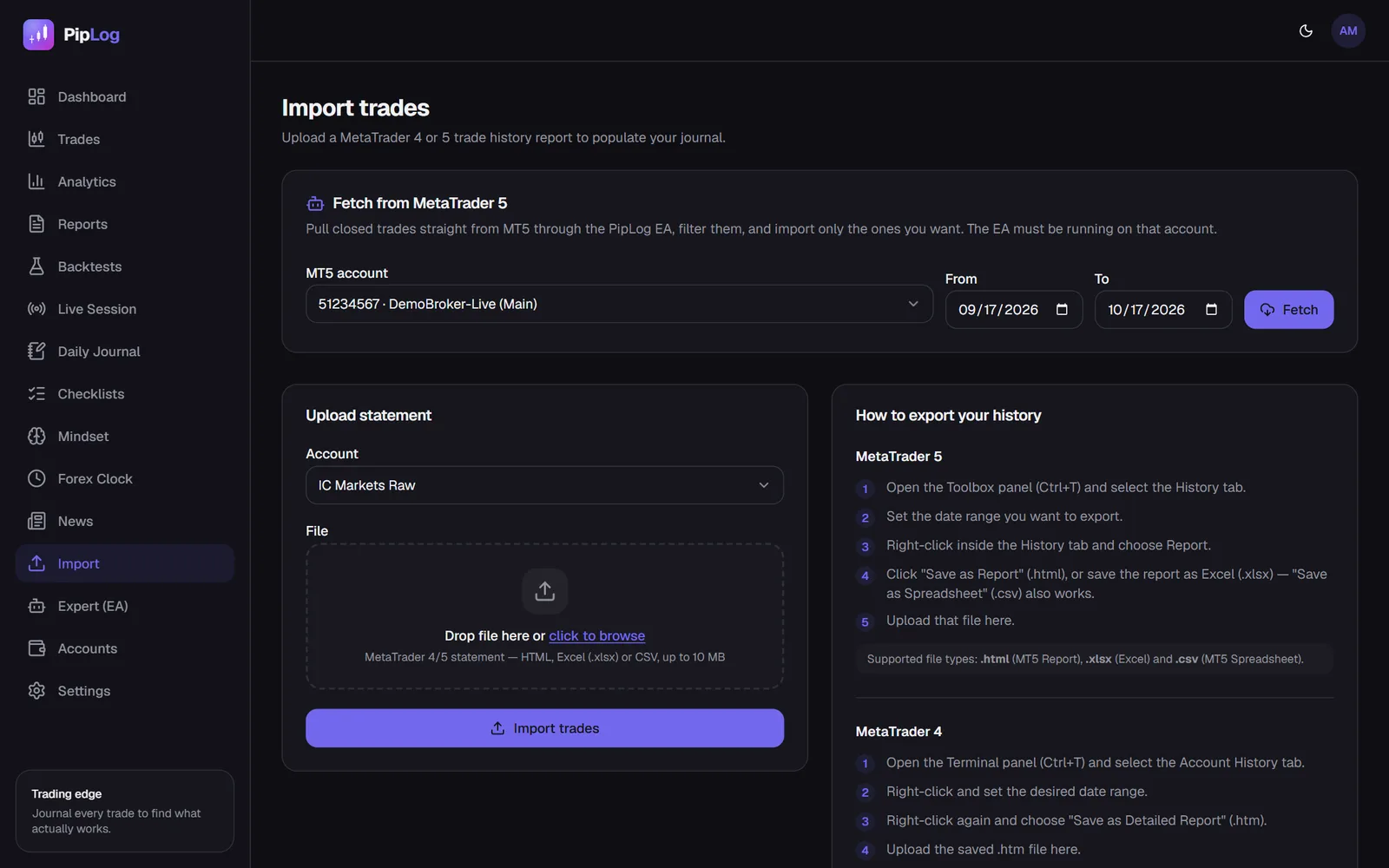
In PipLog, go to Import, choose your MT4 account and upload the .htm file. The importer recognises MT4 statements automatically, skips balance operations and pending orders, and matches every trade by its MT4 ticket. Importing an overlapping period later only adds new trades.
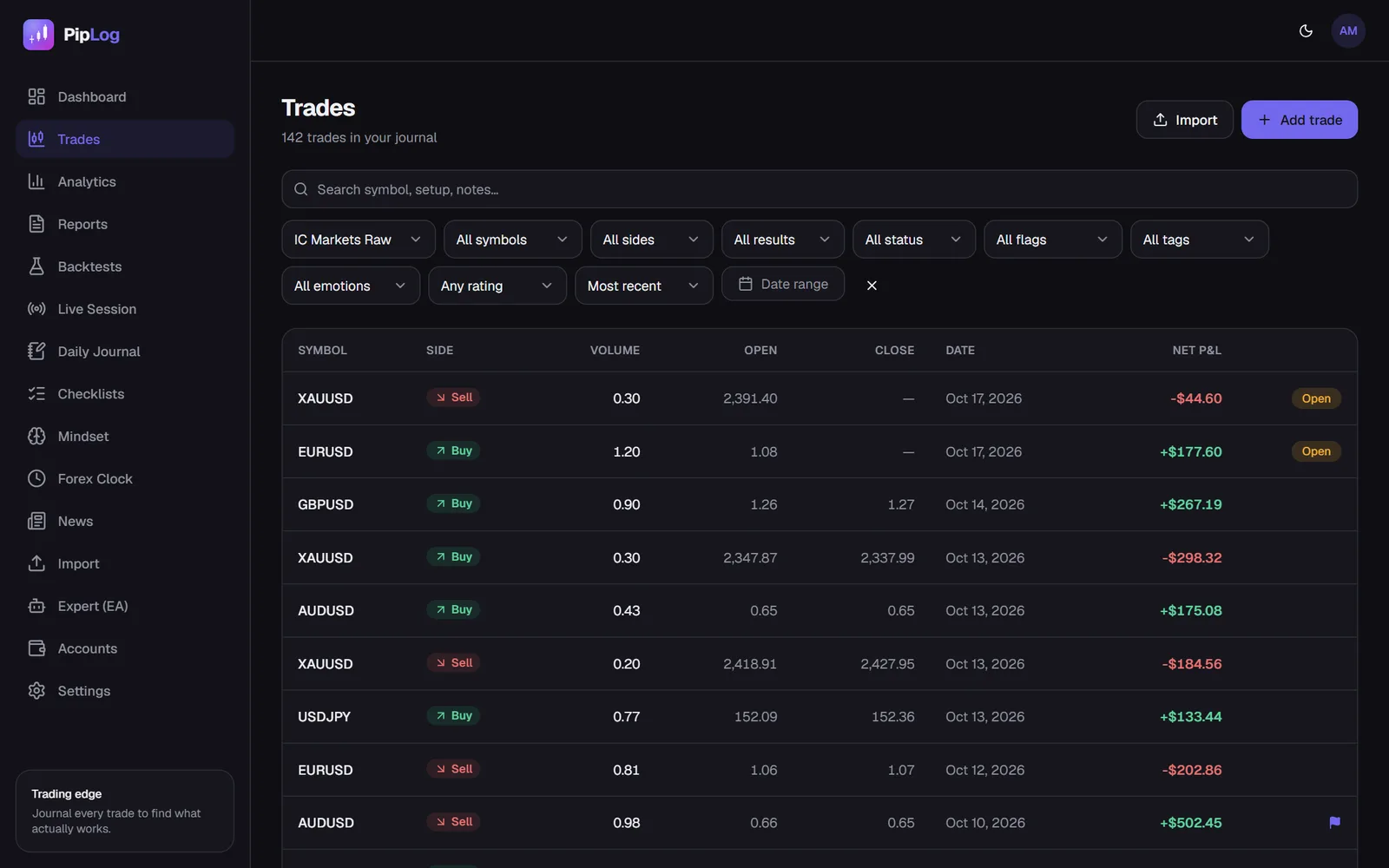
After importing, add your context to each trade: setup, emotion, a rating and a short note. That's what turns a statement into a journal. Our guide on how to keep a trading journal covers what to record.
Troubleshooting MT4 exports
Some trades are missing
You probably exported before MT4 finished loading the full history. Choose All History, wait, and save again.
The file has a .htm extension, not .html
That's normal for MT4. Upload it as is.
I trade several MT4 accounts
Export each account separately while logged in to it, and import each statement into its own account in your journal. This keeps statistics clean, which matters if one of them is a prop firm challenge.
My stop loss shows the final value, not the original
MT4 statements record the stop loss at close time. If you moved your stop to break-even, the statement shows the break-even price. To measure risk correctly, set the initial stop loss on the trade in your journal. This matters for R-multiples.
MT5 users
MT5 uses a different menu: History › right-click › Report. See how to export trade history from MT5.
Journal your MT4 & MT5 trades automatically
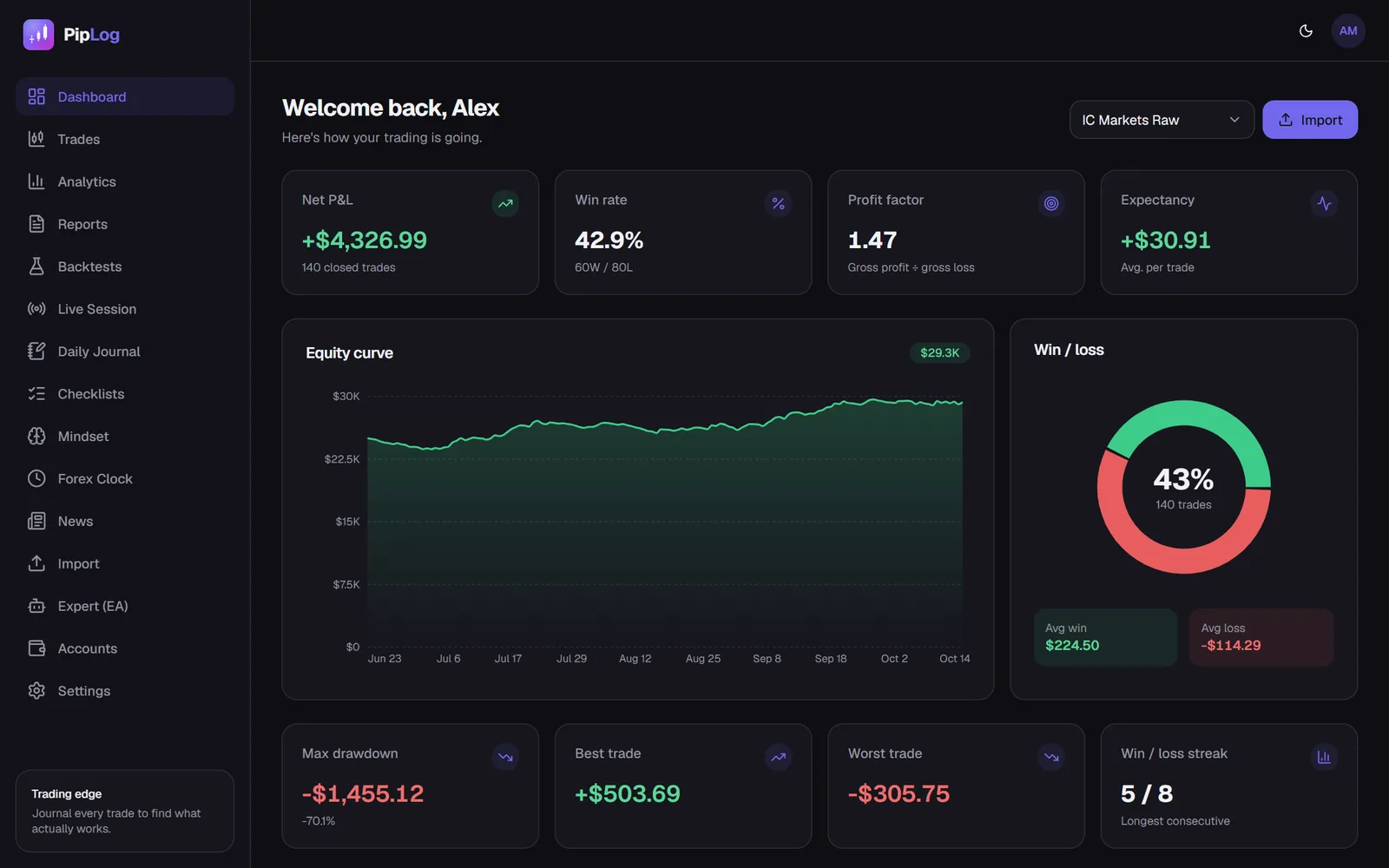
Import a statement or sync live with the PipLog EA. Win rate, profit factor, expectancy and drawdown are calculated for you.
Start your journal