MT5 Trading Journal: How to Journal MetaTrader 5 Trades Automatically
Three ways to build an MT5 trading journal, from statement imports to live sync with an expert advisor, and what to look for in a journal for MetaTrader 5.
MetaTrader 5 keeps a complete record of your trading, but its History tab is built for accounting, not for learning. It tells you what happened. It doesn't tell you why, it doesn't show the chart you saw, and it can't tell you that you lose money every Friday afternoon.
An MT5 trading journal fills that gap. This article covers the three practical ways to get your MT5 trades into a journal, and what separates a useful journal from a glorified spreadsheet.
What MetaTrader 5 gives you out of the box
MT5's built-in tools are better than MT4's, but still limited:
- History tab — every deal, order and position, with a date filter
- Report — an HTML or Excel report with a balance chart, profit factor, drawdown and a few other summary statistics
- No context — there is nowhere to record your setup, reason, emotion or mistakes
- No screenshots — the chart at the moment of entry is gone once price moves on
The MT5 report is a decent snapshot of overall performance. What it can't do is tell you which part of your trading is working.
Option 1: Manual entry in a spreadsheet
You copy each trade from the History tab into Excel or Google Sheets and add your notes.
Pros: free, completely flexible.
Cons: slow, error-prone, and the first thing you'll stop doing after a losing week. A trader taking five trades a day has to type more than 1,000 rows a year by hand.
Option 2: Import your MT5 statement
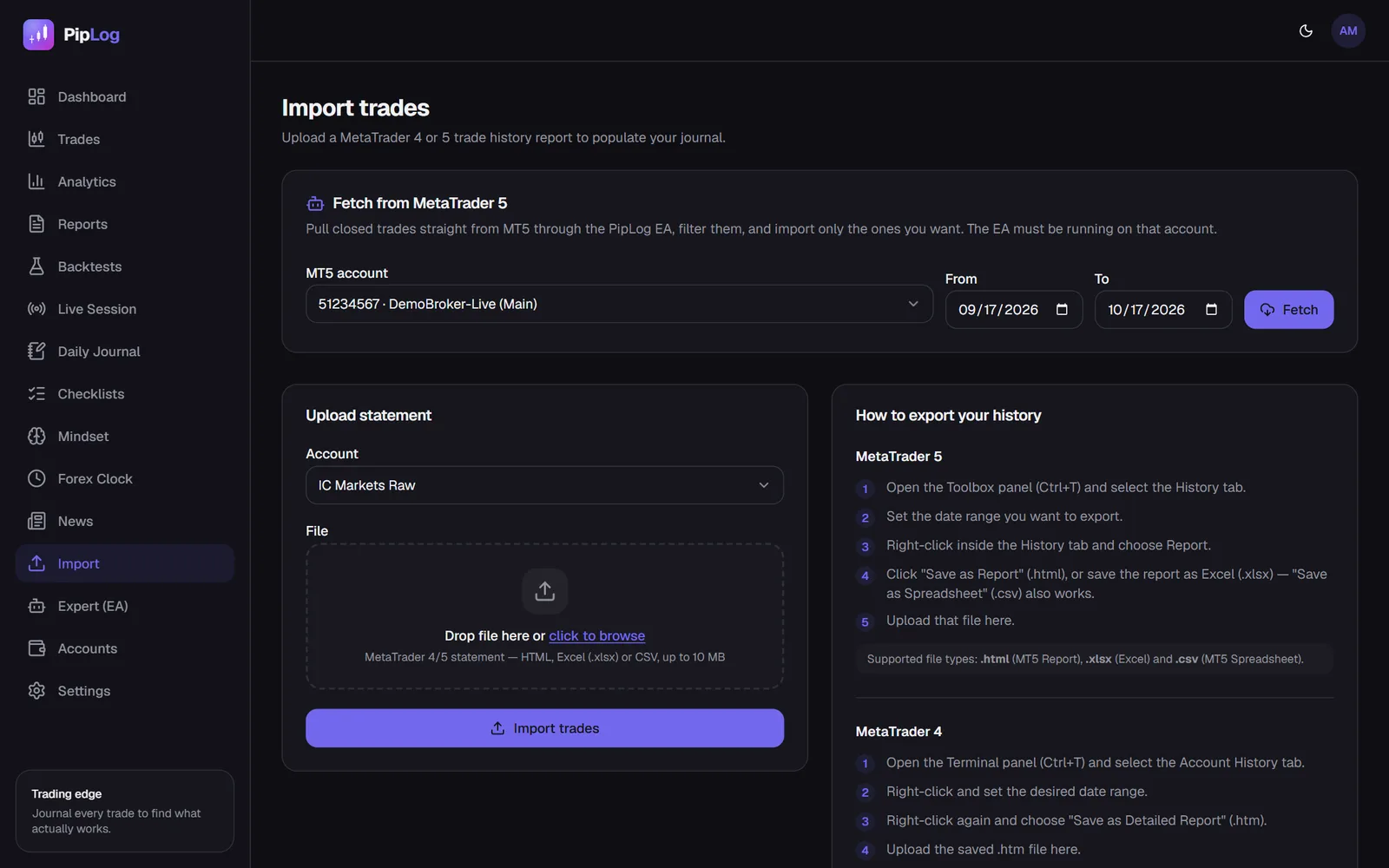
MT5 can save your history as an HTML or Excel report. A journal that understands this format can import hundreds of trades in seconds. The steps are covered in how to export trade history from MT5, but in short: open the History tab, right-click, choose Report and save it.
Two things matter when importing:
- Positions, not deals. MT5 records an entry deal and an exit deal for each position. A good importer joins them into one trade with an open time, close time and net result.
- Deduplication. You'll re-import the same weeks again. The journal should recognise trades it already has by their MT5 position ticket and only add the new ones.
PipLog's importer handles MT5 HTML reports, MT5 Excel reports, MT5 CSV, MT4 detailed statements and generic CSV files, and it de-duplicates by ticket. Re-importing an updated statement only adds what's new.
Option 3: Live sync with an expert advisor
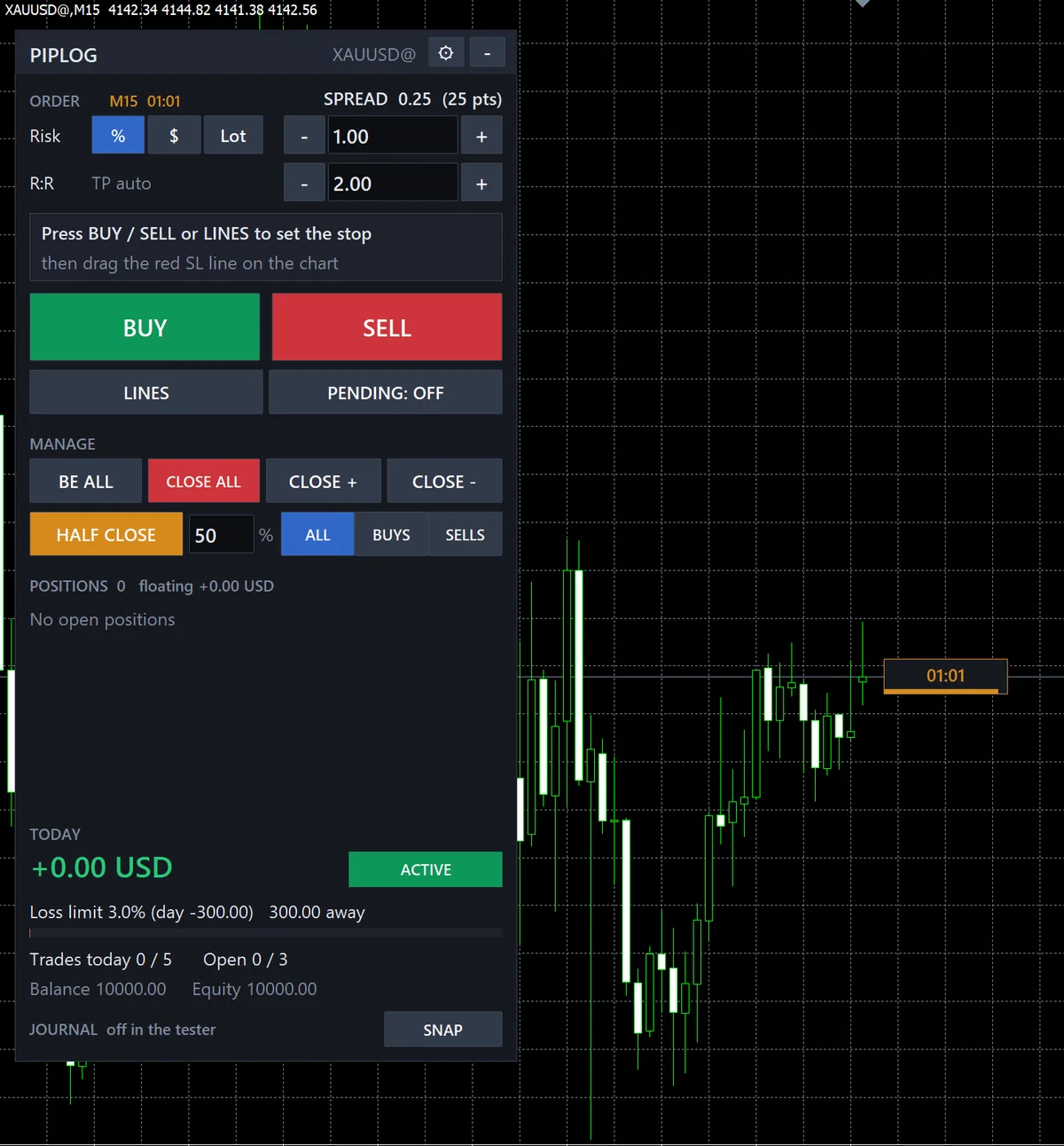
The most hands-off option is an EA that runs in your MT5 terminal and sends trades to your journal as they happen. Done properly, this gives you things no statement can:
- Initial stop loss — the SL at the moment of entry, before you moved it to break-even or trailed it
- Chart screenshots — captured automatically at entry and exit
- Open positions — visible in your journal while they're still running
The PipLog EA does exactly this. It syncs each position by its MT5 position id, which is the same ticket the statement importer uses, so EA-synced trades and imported trades never duplicate each other. It can also fetch older history on request: you pick a date range in PipLog, the EA uploads those closed positions, and you choose which ones to import.
What to look for in an MT5 journal
| Feature | Why it matters |
|---|---|
| Native MT5 import | No hand-editing CSV columns |
| Ticket-based dedup | Safe to re-import every week |
| Initial stop loss | Needed for R-multiples and risk analysis |
| Commission and swap | Net P&L must match your broker |
| Screenshots | Review the chart you actually saw |
| Breakdowns by symbol, weekday, setup | Find where the edge really is |
| Multiple accounts | Separate personal and prop-firm accounts |
| Behaviour detection | Spot revenge trading and oversizing automatically |
A weekly MT5 journaling routine
- Daily: let the EA sync, or import your statement at the end of the day. Spend two minutes per trade adding setup, emotion and a short note.
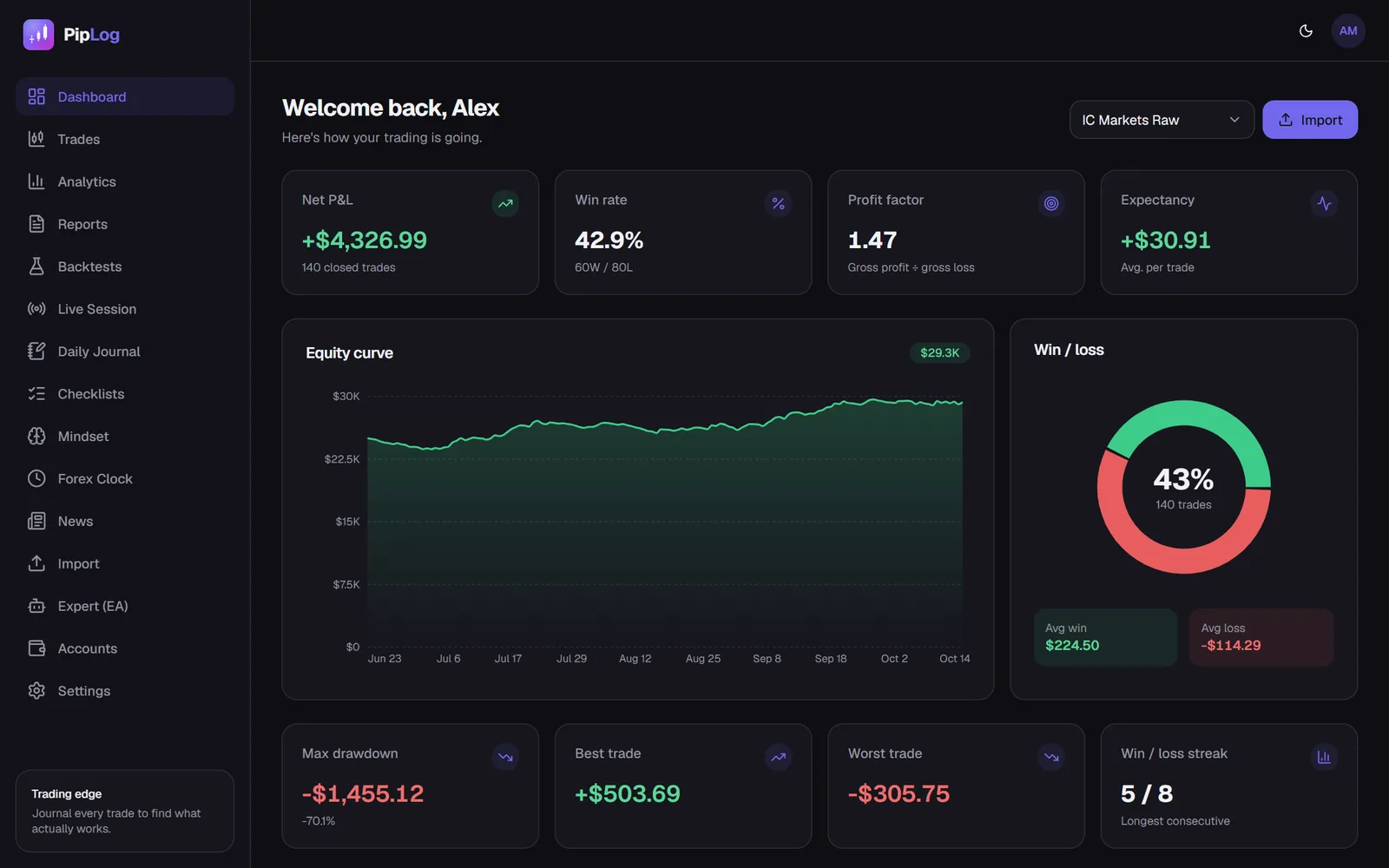
- Weekly: review your dashboard. Compare this week's win rate, profit factor and average R to your last 4 weeks.
- Monthly: look at breakdowns by symbol and setup. Drop or reduce the setups that have lost money for two months in a row.
MT4 traders
Everything above applies to MetaTrader 4 as well, except live sync. PipLog imports MT4 "Detailed Report" statements; see how to export MT4 trade history.
Journal your MT4 & MT5 trades automatically
Import a statement or sync live with the PipLog EA. Win rate, profit factor, expectancy and drawdown are calculated for you.
Start your journalSummary
The best MT5 trading journal is the one you keep using. Remove manual entry with statement imports or live EA sync, record the context MetaTrader can't, and review on a schedule.