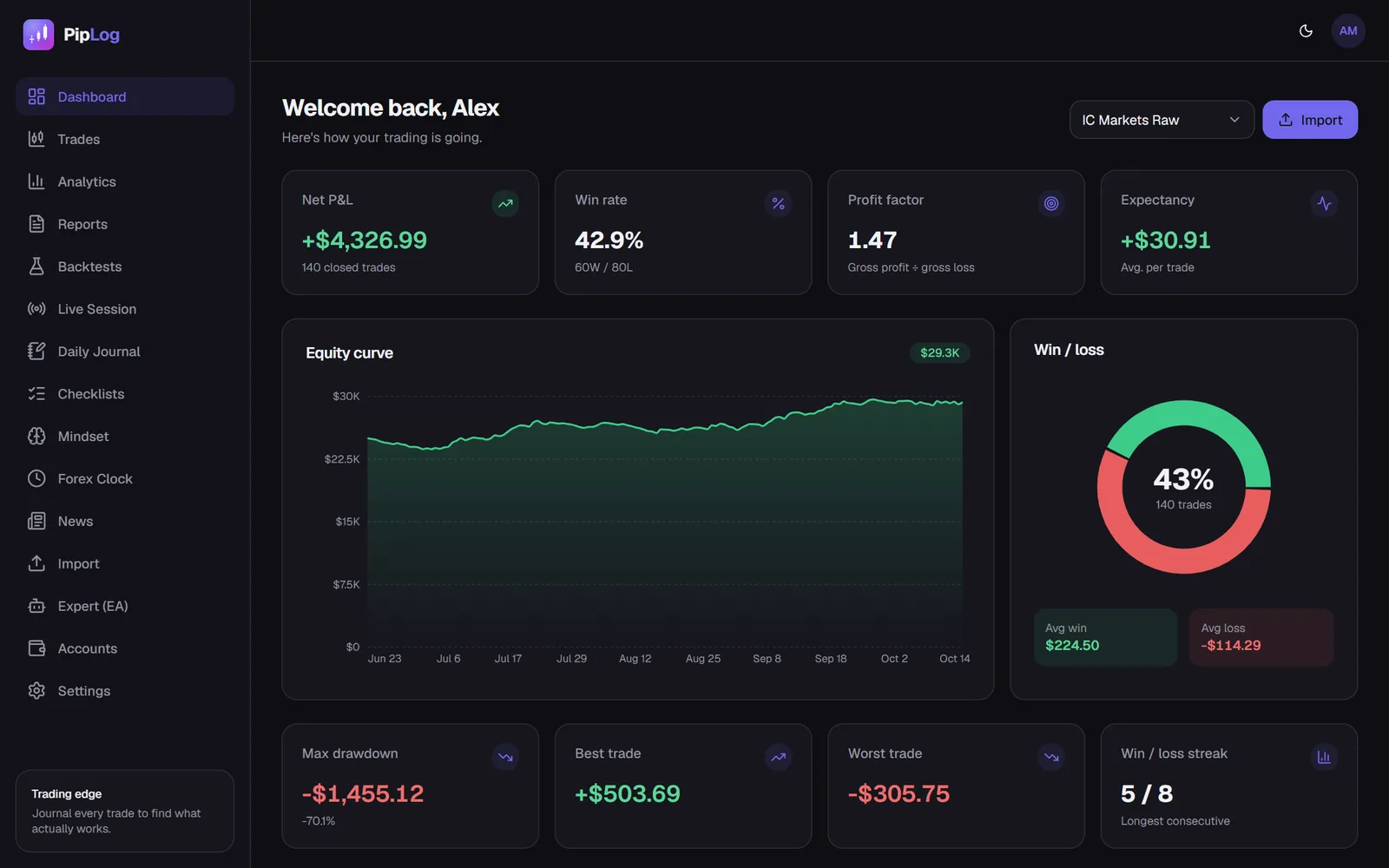
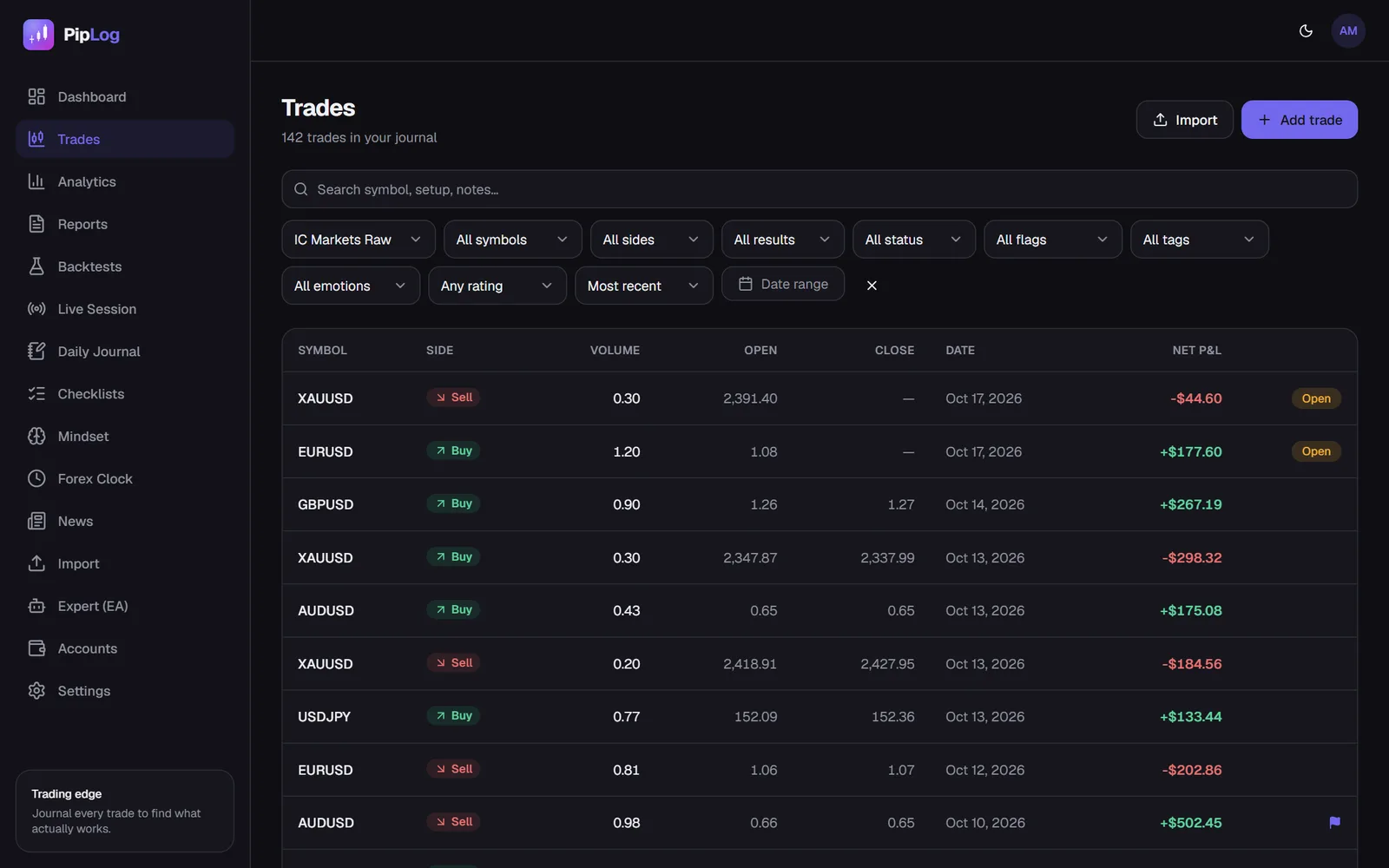
Why You Should Screenshot Every Trade (and How to Automate It in MT5)
Chart screenshots are the most underrated part of a trading journal. What to capture, when, and how to take MT5 screenshots automatically at entry and exit.
Numbers tell you that a trade lost. A screenshot tells you why. Three weeks later, "EURUSD sell, −1R" means nothing, but a chart showing you shorted straight into a higher-timeframe support level teaches you something immediately.
What a screenshot shows that numbers can't
- Context. Trend, structure, key levels and where price came from
- Entry quality. Was it at your level, or chased three candles late?
- Stop placement. Behind structure, or in the middle of noise?
- What happened next. Did price reach your target after stopping you out?
- Patterns across trades. Put 20 losing screenshots side by side and the common mistake jumps out
When to take screenshots
At entry
The most important one. Capture the chart exactly as you saw it when you decided: your timeframe, your levels, your stop and target lines.
At exit
Shows how the trade developed and whether your management matched your plan.
Higher timeframe (optional)
One screenshot of the higher timeframe at entry. Many "bad entries" are perfectly fine trades against the higher-timeframe trend.
What to include on the chart
- Your entry, stop loss and take profit lines
- The key levels you were trading from
- The indicators your strategy actually uses, and nothing else
- Enough history to see the structure, typically 100 to 200 candles
Keep the chart template the same for every trade. Consistency makes screenshots comparable.
Taking screenshots manually in MT5
In MetaTrader 5, right-click the chart and choose Save as Picture, or use File › Save as Picture. You can save the active chart or the whole terminal window. Then attach the image to the trade in your journal.
It works, but it's the step that gets skipped first. In a fast market you're managing the trade, not saving pictures. That's why most journals end up with screenshots for the first two weeks and none after.
Automating screenshots
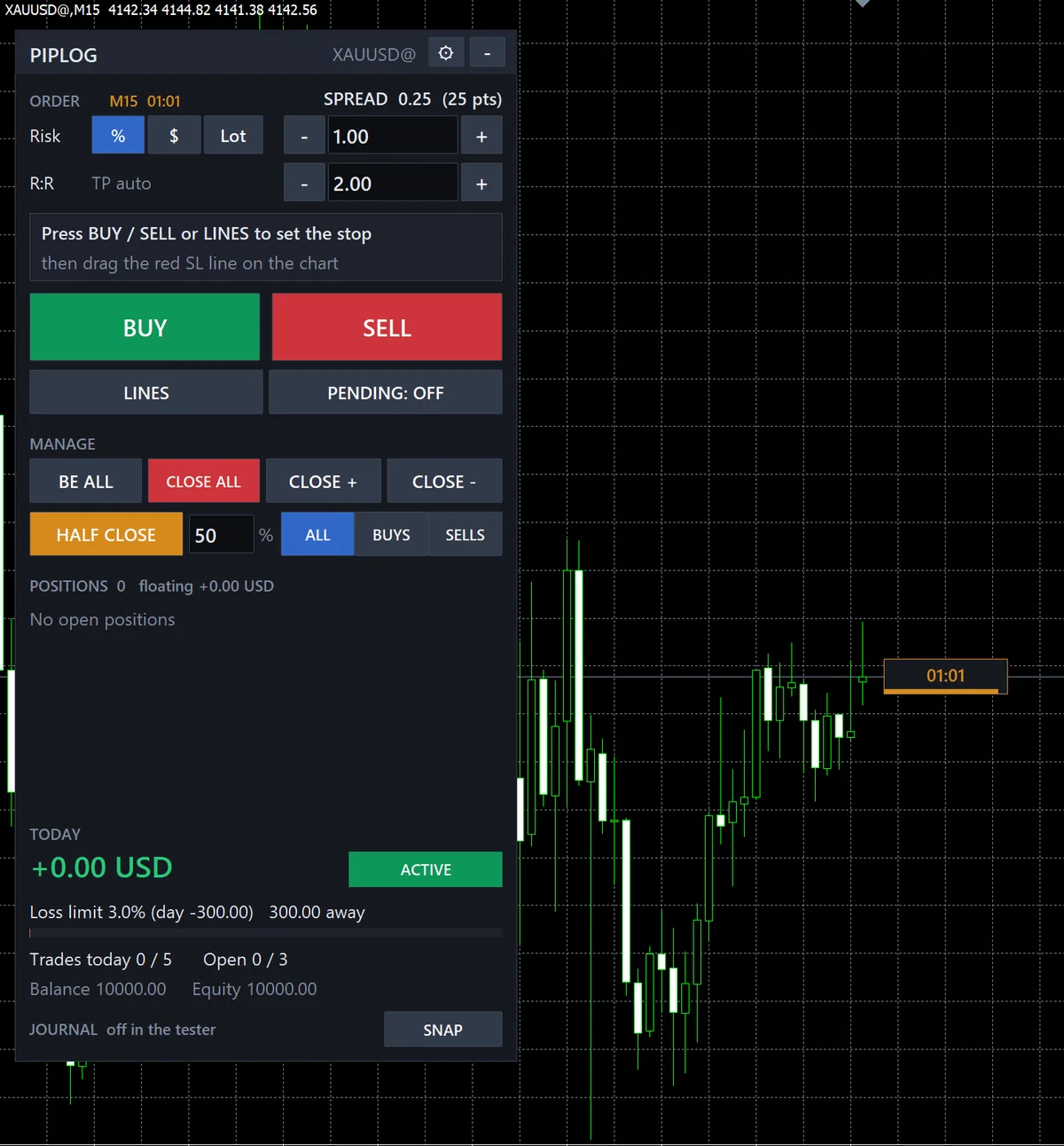
The PipLog EA captures the chart automatically:
- When a position opens
- When a position closes
- Any time you press SNAP on the panel, for example to capture a setup you're watching or a management decision
Screenshots are taken at the chart's own size, with the EA panel hidden by default so it doesn't cover price. They queue on your computer and upload to your journal, attached to the right trade, even if the connection drops for a while.
Reviewing screenshots effectively
Screenshots are only useful if you look at them. A simple routine:
- Weekly: open every losing trade and look at the entry screenshot before reading your note. Would you take this trade again?
- Monthly: filter trades by setup and scroll through their screenshots. The best examples become your "playbook" of A+ setups.
- Mistakes: for every trade flagged as a mistake, write one sentence on what the screenshot shows you should have seen.
Build a visual playbook
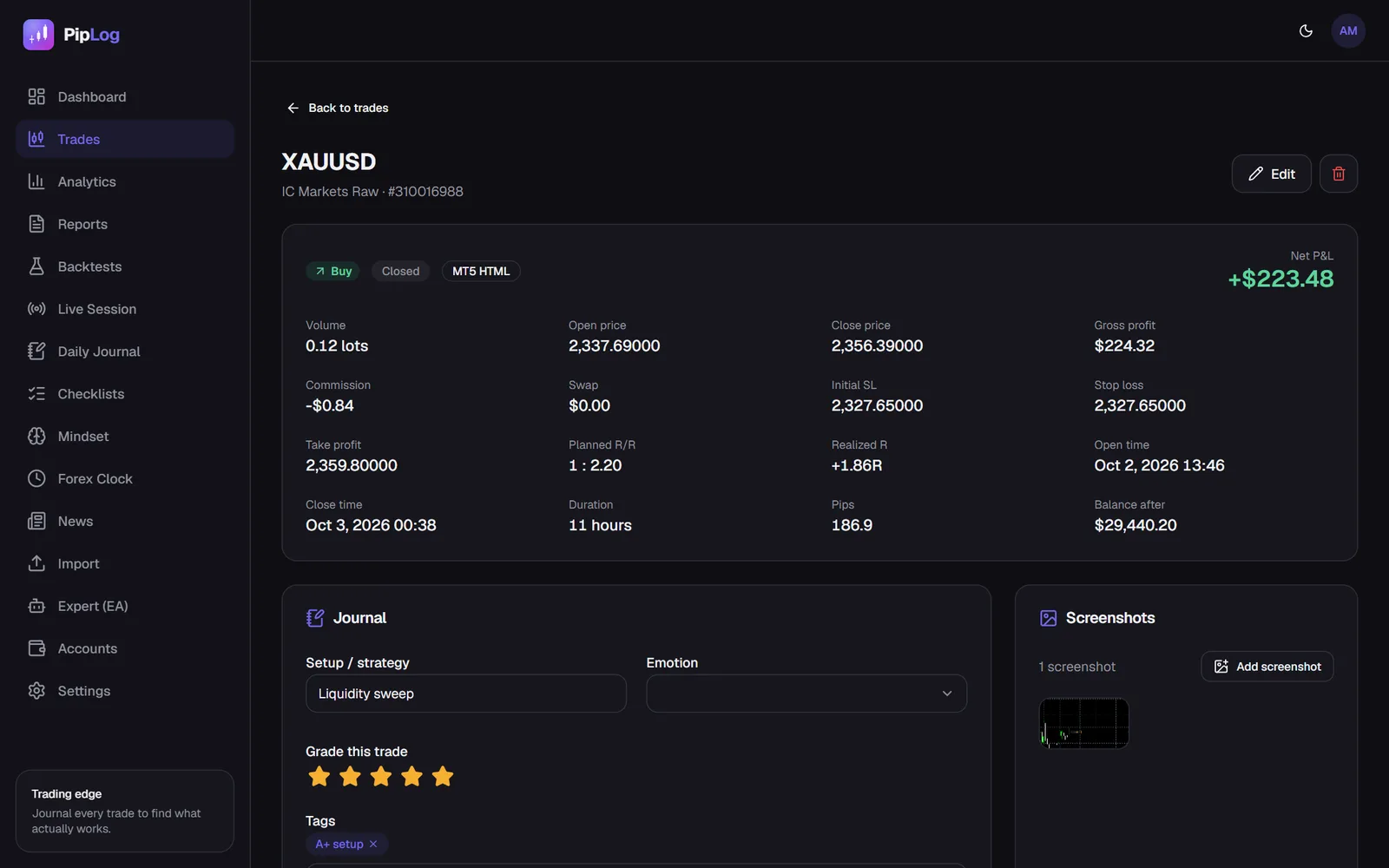
Over time your best screenshots become a playbook: a collection of textbook examples for each setup. Before a session, scroll through it for two minutes. You'll recognise A+ setups faster, and you'll be less tempted by the B and C versions.
Journal your MT4 & MT5 trades automatically
Import a statement or sync live with the PipLog EA. Win rate, profit factor, expectancy and drawdown are calculated for you.
Start your journalKey takeaways
- Screenshots show context, entry quality and stop placement that numbers can't.
- Capture at least entry and exit, with a consistent chart template.
- Automate it, because manual screenshots are the first habit to go.
- Review them weekly and turn the best into a visual playbook.